

When you log in to Lifecycles, you’ll find all your Microsoft 365 licensing information in just a couple of clicks –https://master.lifecycleinsights.io/signIn
This guide shows you where to look and what each area means.
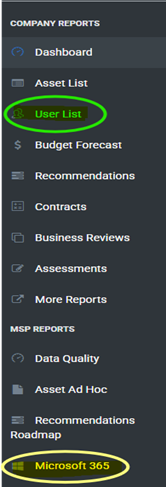
Once you’re logged in, look at the left‑hand menu. Two key sections are:
- Microsoft 365 – shows all licences, counts, and availability
- User List – shows all users and their assigned licences
If you can’t log in or Lifecycles hasn’t been set up for you yet, just contact us, we’re happy to help you get access.
Contact us at:
01259 727847
Note:
Users without a licence assigned are not billed. Only assigned or available licences count toward monthly charges
Go to: Microsoft 365
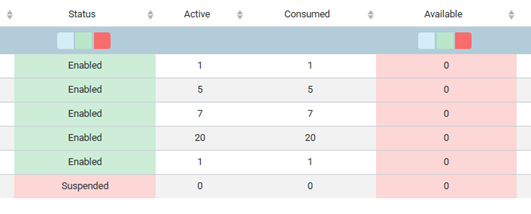
In this view, you’ll see:
- A full list of licences your organisation owns
- How many licences you have in total
- How many are currently in use
- How many are available
This helps you quickly identify whether you’re running low on licences or have unused ones that could be reassigned.
Go to: User List
Here, you’ll see user details such as:
- First Name
- Last Name
- Email Address
- Location
To check who actually has licences:
- Locate the Microsoft 365 Assigned Products column
- Click the column header twice
- This sorts users so that those with licences assigned appear at the top

We hope this short guide gives you a better understanding of your Microsoft 365 Licenses, how many you have and where they are being used. If you have any questions then please reach out to us, we’re here to help.